Installation
This guide covers installing Smart Asset Finder in your Unreal Engine project.
Prerequisites
For detailed system requirements, see the Requirements page.
- Unreal Engine 5.5 or higher
- Windows 10/11 x64
- 2GB disk space for AI models
- 4GB RAM minimum (8GB+ recommended)
Method 1: Fab Marketplace (Recommended)
- Open the Fab website or use the in-editor Fab browser
- Search for “Smart Asset Finder”
- Purchase or download the plugin
- In the Epic Games Launcher, go to
Library → Fab Library - Find Smart Asset Finder and click Add to Project
- Select your target project and confirm
Method 2: Manual Installation
- Download the plugin package from your purchase source
- Extract the
SmartAssetFinderfolder - Place it in your project’s
Pluginsdirectory:
YourProject/
└── Plugins/
    └── SmartAssetFinder/
If Plugins doesn’t exist, create it at the project root.
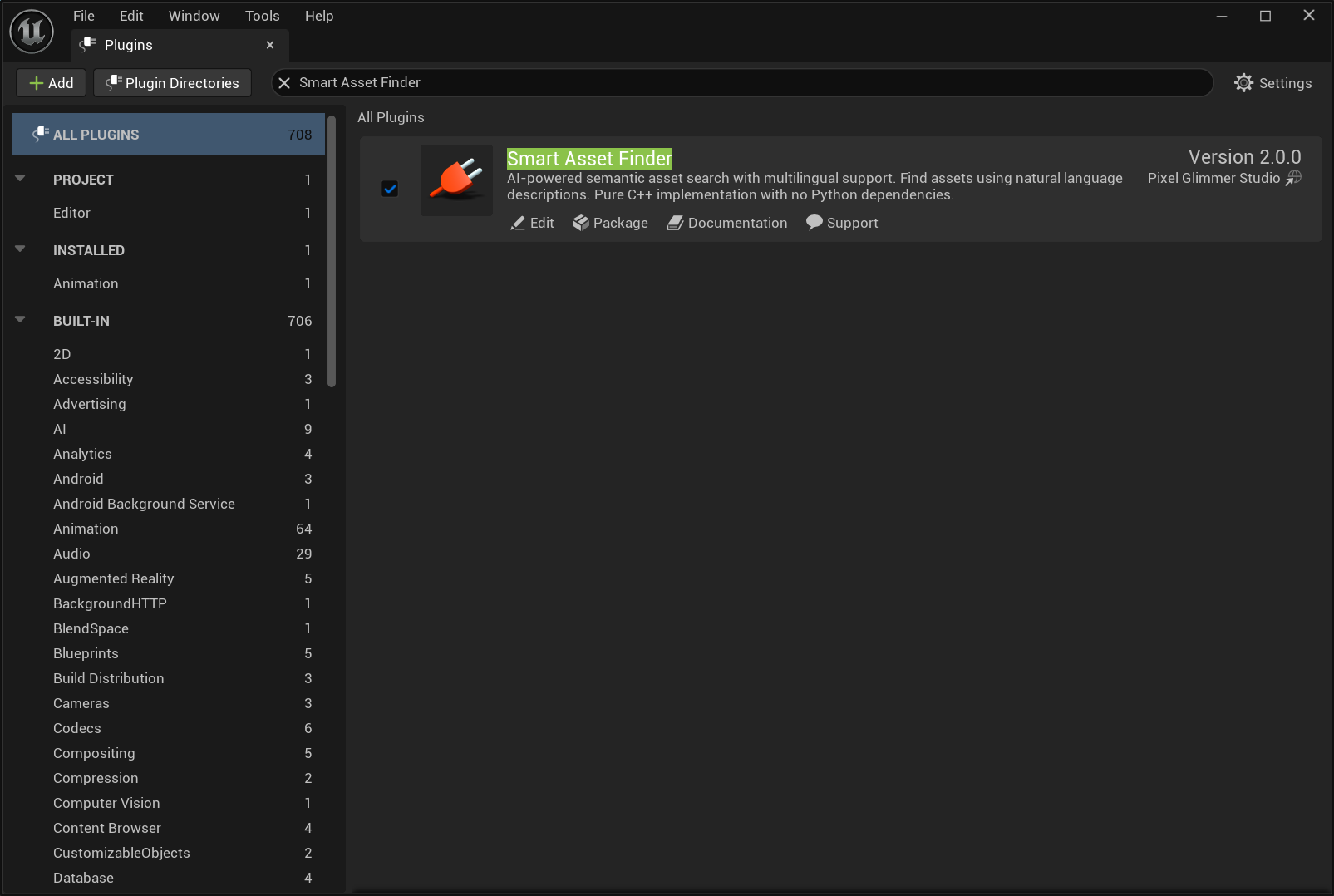
Enable the Plugin
- Open your project in Unreal Editor
- Go to
Edit → Plugins - Search for “Smart Asset Finder”
- Check the Enabled checkbox
- Click Restart Now when prompted
Verify Installation
After restart, verify the plugin is working:
- Go to
Window → Smart Asset Finderin the top menu
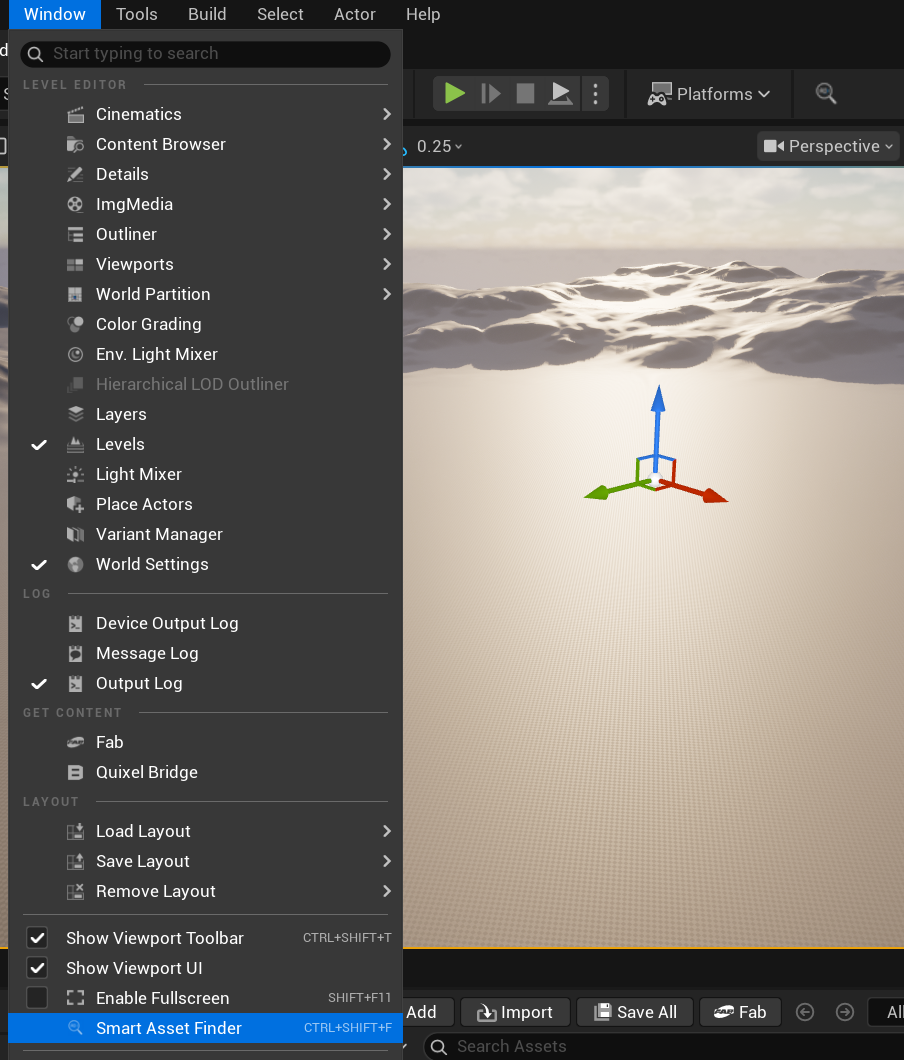
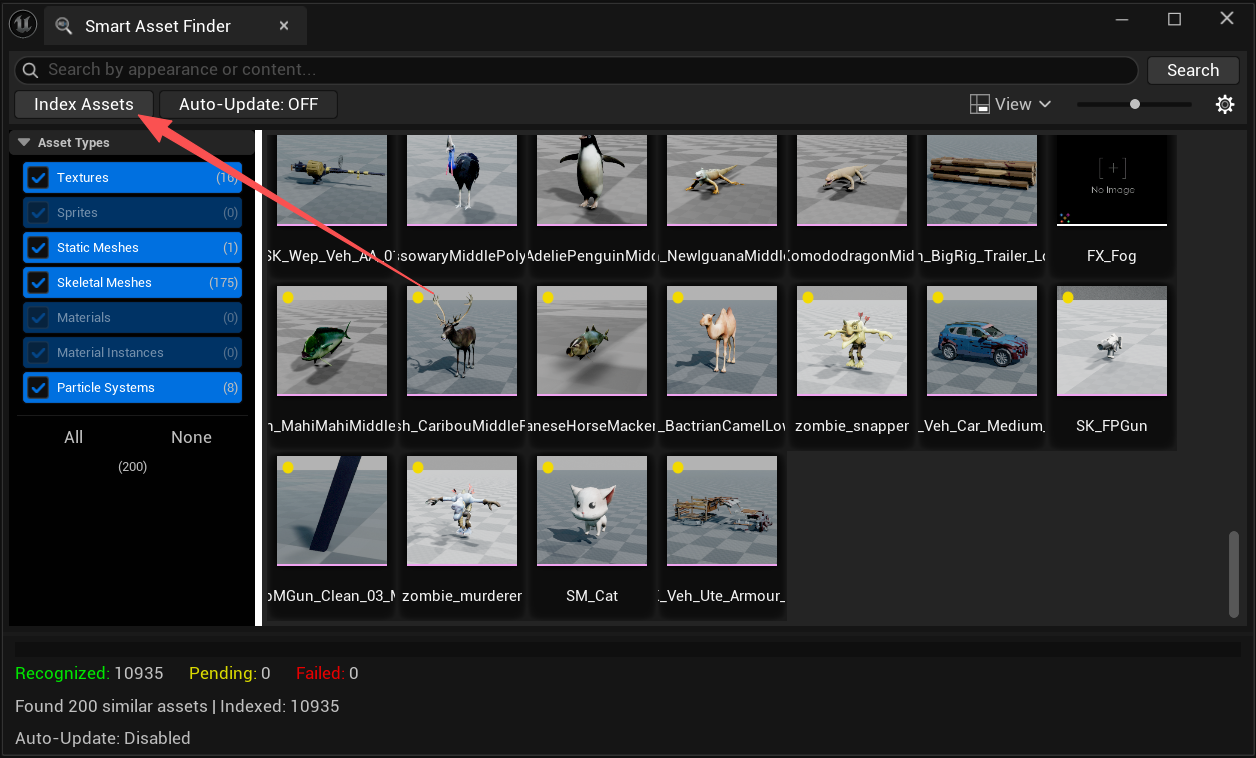
- The Smart Asset Finder window should open
- You should see the search interface with an “Index Assets” button
Next Steps
- Getting Started - Build your index and start searching
- Configuration - Customize settings
- FAQ - Troubleshooting and common questions